Monthly Archives: June 2025

Azure Foundry Resources: What They Are and How to Create Them Step-by-Step

Microsoft Azure continues to simplify how developers and enterprises build AI-powered applications. One of the most important additions in this space is Azure AI Foundry (aligned with Azure AI Studio), which provides a unified way to build, manage, and deploy generative AI and machine learning solutions.

At the core of Azure AI Foundry are Foundry Resources.

In this blog post, we’ll cover:

  • What Azure Foundry Resources are
  • Why they matter
  • Key components
  • Step-by-step instructions to create an Azure Foundry Resource
  • Best practices and common scenarios

What Are Azure Foundry Resources?

Azure Foundry Resources are the foundational Azure resources used by Azure AI Foundry to manage AI workloads such as:

  • Large Language Models (LLMs)
  • Prompt engineering
  • Model deployment
  • Evaluation and monitoring
  • Secure integration with enterprise data

A Foundry Resource acts as a central AI workspace that connects models, compute, data, and security in one place.

Why Azure Foundry Resources Matter

Traditional AI development often involves stitching together multiple services manually. Azure Foundry Resources simplify this by offering:

  • Centralized AI project management
  • Built-in security and governance
  • Seamless integration with Azure OpenAI models
  • Enterprise-grade identity, networking, and compliance
  • Faster AI application lifecycle from build to deployment

This makes Foundry Resources ideal for enterprise AI, copilots, and generative AI applications.

Key Components of an Azure Foundry Resource

When you create a Foundry Resource, Azure integrates several services automatically:

  • Azure AI Services
  • Azure OpenAI (if enabled in your subscription)
  • Azure Machine Learning
  • Managed identity
  • Networking and access controls
  • Model catalog and deployments

All of these capabilities are accessible through Azure AI Foundry Studio.

Prerequisites

Before creating a Foundry Resource, make sure you have:

  • An active Azure subscription
  • Contributor or Owner access on the subscription or resource group
  • Access to Azure OpenAI (if you plan to use GPT models)
  • A supported Azure region such as East US, West Europe, or Sweden Central

Step-by-Step: How to Create an Azure Foundry Resource

Step 1: Sign in to Azure Portal

Navigate to the Azure Portal and sign in using your Azure credentials.

Step 2: Search for Azure AI Foundry

In the Azure Portal search bar, type Azure AI Foundry and select it from the results.

Step 3: Create a Foundry Resource

On the Azure AI Foundry page, click Create and select Foundry Resource.

Step 4: Configure Basic Details

Provide the following information:

  • Subscription: Select your Azure subscription
  • Resource Group: Create a new one or select an existing group
  • Resource Name: Example ai-foundry-prod-01
  • Region: Choose a region that supports Azure AI Foundry and Azure OpenAI

Click Next to continue.

Step 5: Configure Networking

You can choose between:

  • Public endpoint (default and easiest)
  • Private endpoint (recommended for enterprise and production workloads)

For production environments, enabling a private endpoint and restricting public access is a best practice.

Click Next.

Step 6: Identity and Security

  • Managed identity is enabled by default
  • Role assignments can be configured later using Azure RBAC

This identity enables secure access to Azure services such as Storage Accounts, Azure OpenAI, and Key Vault.

Click Next.

Step 7: Review and Create

Review all configuration details and click Create.
Deployment typically completes within a few minutes.

Access Azure AI Foundry Studio

After deployment:

  1. Open the newly created Foundry Resource
  2. Click Launch Azure AI Foundry Studio

From here, you can deploy models, design prompts, build copilots, evaluate outputs, and monitor usage.

Common Use Cases for Azure Foundry Resources

Azure Foundry Resources are commonly used for:

  • Enterprise copilots for HR, Finance, and IT
  • Document summarization and document intelligence
  • Knowledge-base chatbots using RAG patterns
  • AI-powered analytics assistants
  • Model experimentation, evaluation, and governance

Best Practices

  • Use separate Foundry Resources for development, testing, and production
  • Enable private networking for sensitive workloads
  • Store secrets in Azure Key Vault
  • Monitor usage and costs using Azure Monitor
  • Use Azure RBAC instead of shared access keys

Final Thoughts

Azure Foundry Resources provide a powerful, secure, and scalable foundation for building enterprise-grade AI solutions on Azure. By simplifying model management, security, and deployment, they allow teams to focus on delivering real business value with AI.

If you are building generative AI applications, copilots, or intelligent platforms, Azure AI Foundry should be one of your first stops.
Aligning Azure AI Foundry with Azure OpenAI and Microsoft Fabric

Why This Integration Matters

Generative AI is only as powerful as the data behind it. While Azure OpenAI provides industry-leading models, enterprises need:

  • Governed, trusted enterprise data
  • Real-time and batch analytics
  • Security, identity, and compliance
  • Scalable AI lifecycle management

Microsoft Fabric acts as the data foundation, Azure OpenAI delivers the intelligence, and Azure AI Foundry provides the AI application and orchestration layer.

High-Level Architecture Overview

The integrated architecture consists of three core layers:

Data Layer – Microsoft Fabric

Microsoft Fabric provides a unified analytics platform built on OneLake. It enables:

  • Data ingestion using Fabric Data Pipelines
  • Lakehouse architecture with Bronze, Silver, and Gold layers
  • Data transformation using Spark notebooks
  • Real-time analytics and semantic models

Fabric ensures AI models consume clean, governed, and up-to-date data.

Intelligence Layer – Azure OpenAI

Azure OpenAI delivers large language models such as:

  • GPT-4o / GPT-4.1
  • Embedding models for vector search
  • Fine-tuned and custom deployments

These models are used for:

  • Natural language understanding
  • Summarization and reasoning
  • Retrieval-Augmented Generation (RAG)

Application Layer – Azure AI Foundry

Azure AI Foundry acts as the control plane where you:

  • Connect to Azure OpenAI deployments
  • Build and test prompts
  • Configure RAG workflows
  • Evaluate and monitor model outputs
  • Secure and govern AI applications

This is where AI solutions move from experimentation to production.

End-to-End Data Flow

A typical flow looks like this:

  1. Data is ingested into Microsoft Fabric using pipelines
  2. Raw data lands in OneLake (Bronze layer)
  3. Data is transformed and enriched (Silver and Gold layers)
  4. Curated data is vectorized using embeddings
  5. Azure OpenAI generates embeddings and responses
  6. Azure AI Foundry orchestrates prompts, retrieval, and evaluations
  7. Applications consume responses through secure APIs

Step-by-Step: Setting Up Azure OpenAI + Fabric + AI Foundry

Step 1: Set Up Microsoft Fabric

  • Enable Microsoft Fabric in your tenant
  • Create a Fabric workspace
  • Create a Lakehouse backed by OneLake
  • Ingest data using Data Pipelines or notebooks

Organize data using the Medallion architecture for AI readiness.

Step 2: Prepare Data for AI Consumption

  • Clean and normalize data
  • Chunk large documents
  • Store metadata and identifiers
  • Create delta tables for curated datasets

High-quality data significantly improves LLM output quality.

Step 3: Create an Azure OpenAI Resource

  • Create an Azure OpenAI resource in a supported region
  • Deploy required models:
    • GPT models for generation
    • Embedding models for vector search

Capture endpoints and keys securely using Managed Identity and Key Vault.

Step 4: Create an Azure AI Foundry Resource

  • Create a new Azure AI Foundry resource
  • Enable managed identity
  • Configure networking (private endpoints recommended)
  • Connect Azure OpenAI deployments

This resource becomes your AI application workspace.

Step 5: Implement RAG with Fabric + Foundry

  • Generate embeddings from Fabric data
  • Store vectors in a supported vector store
  • Configure retrieval logic in Azure AI Foundry
  • Combine retrieved context with user prompts

This approach grounds AI responses in enterprise data.

Step 6: Secure and Govern the Solution

  • Use Azure Entra ID for authentication
  • Apply RBAC across Fabric, Foundry, and OpenAI
  • Monitor usage and cost using Azure Monitor
  • Log prompts and responses for auditing

Enterprise governance is critical for production AI workloads.

Common Enterprise Use Cases

This integrated stack enables:

  • AI copilots powered by enterprise data
  • Financial and operational reporting assistants
  • Knowledge discovery and document intelligence
  • Customer support and internal helpdesk bots
  • AI-driven analytics experiences

Best Practices

  • Keep Fabric as the single source of truth
  • Use private networking for all AI services
  • Separate dev, test, and prod environments
  • Continuously evaluate prompts and responses
  • Monitor token usage and latency

Final Thoughts

The combination of Microsoft Fabric, Azure OpenAI, and Azure AI Foundry represents Microsoft’s most complete AI platform to date. Fabric delivers trusted data, Azure OpenAI provides state-of-the-art models, and Azure AI Foundry brings everything together into a secure, enterprise-ready AI application layer.

If you’re building data-driven generative AI solutions on Azure, this integrated approach should be your reference architecture.

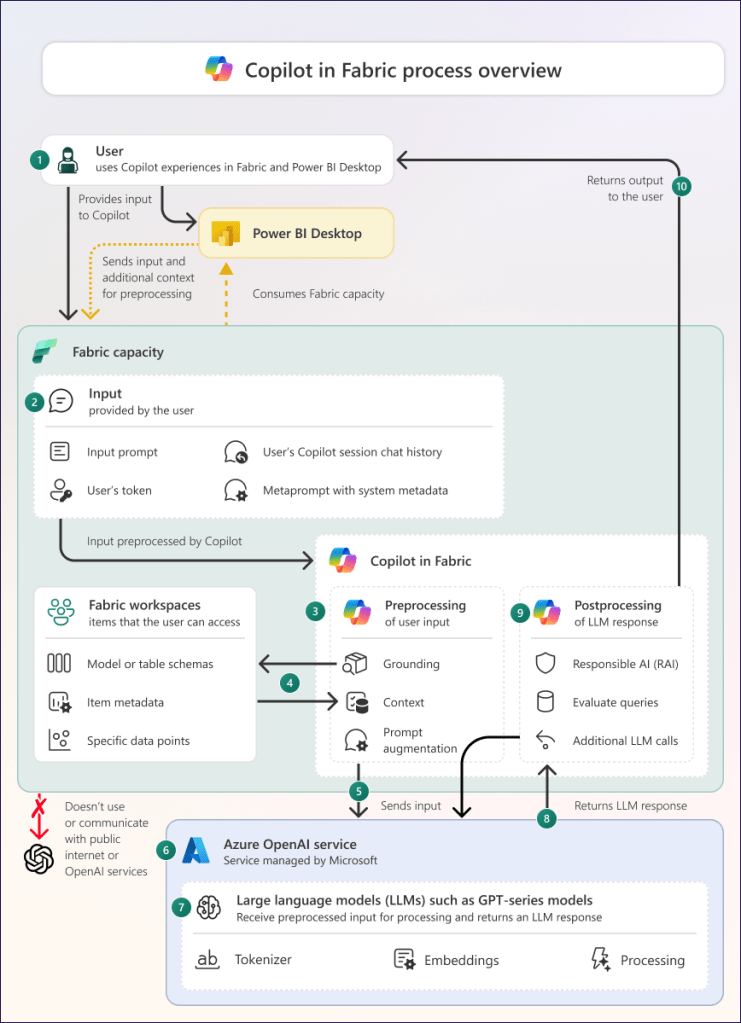
Microsoft Fabric Meets Copilot: AI That Supercharges Your Data Workflows

Microsoft Fabric with Copilot turns complex data tasks into simple conversations, letting teams build, analyze, and act faster across lakehouses, pipelines, and reports. This combo unifies your data estate while AI handles the heavy lifting for insights and automation.

Copilot Across Fabric Workloads

Copilot works seamlessly in notebooks, Data Factory, Power BI, and Real-Time Intelligence. In notebooks, it generates Python or Spark code from natural language like “Add revenue columns and plot trends.” Data Factory users prompt “Build a pipeline to clean sales data and join with inventory,” and Copilot creates the steps with error fixes.

Power BI Copilot drafts reports: “Summarize churn by region with visuals,” pulling from OneLake for instant dashboards. Real-Time Intelligence converts prompts to KQL queries for live streams, like spotting shipment delays.​​

Real-World Samples in Action

Sales teams ask: “Show customer churn trends by region.” Copilot queries Fabric warehouses, generates a map and KPIs, ready for Dynamics 365 embedding.

Finance prompt: “Highlight monthly cash flow anomalies.” It scans unified ledgers, flags outliers, and suggests forecasts via Power BI visuals.

Manufacturing: “Flag machines with downtime risks.” Copilot builds real-time dashboards from IoT streams, alerting on patterns with auto-generated alerts.

Quick Setup and Best Practices

Enable Copilot in the Fabric admin portal for F64+ capacities—it’s on by default for paid SKUs. Start with security groups for pilot users, then train on prompts like “Explain this dataset” or “Optimize this query.”

Pro tip: Load data as dataframes for best results; Copilot understands schema and suggests transformations. Track ROI by time saved on ETL and analysis.

Why It Changes Everything for Data Leaders

Fabric + Copilot cuts dev time 50% while scaling enterprise analytics. Integrate with Purview for governance, then deploy agents for ongoing insights—your path to AI-driven decisions without the hassle.

#MicrosoftFabric #Copilot #DataAI